GroupFlow User Guide
GroupFlow helps you save tabs quickly, organize links by folder, and reopen them by context in seconds.
- Open the GroupFlow extension from your browser toolbar.
- Select the folder you want to save into.
- Click
Save current tab. - When needed, click
Open selectedor go toDashboardfor advanced management.
1) Popup: Save and open quickly (new UI)
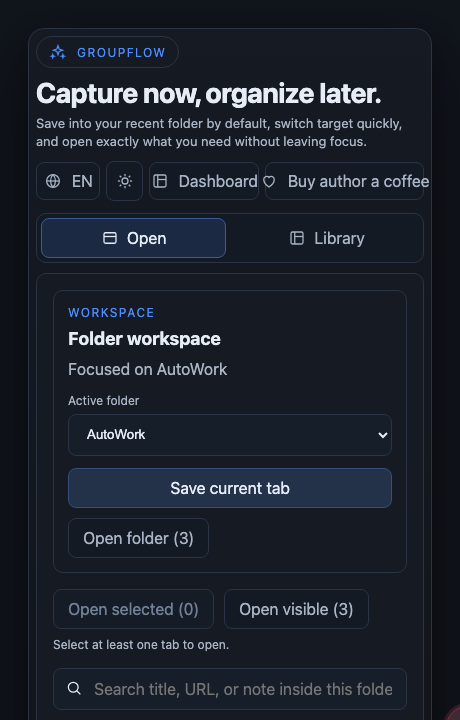
This is the screen you will use most often while browsing, designed for fast actions.
- Confirm the correct Active folder.
- Click Save current tab to add the current page to that folder.
- To reopen quickly, use Open selected or Open visible.
- Use the search box to filter links by title/URL/note.
2) Find links in the current folder (Quick open)
In the new UI, the search field sits right under the open actions for a smoother flow.
- Type keywords into the search box.
- Click Select all if you want to perform bulk actions.
- Open the selected links to restore your working session faster.
3) Workspace area in popup
This screenshot is in the Quick open tab, focused on the Workspace area for selecting folders and opening link groups.
- Verify the correct Active folder in Workspace.
- Use Open folder to open all links in the currently selected folder.
- Use Open selected and Open visible for context-based opening.
- Type in the search box to filter links directly inside popup.
4) Dashboard: full management (new UI)
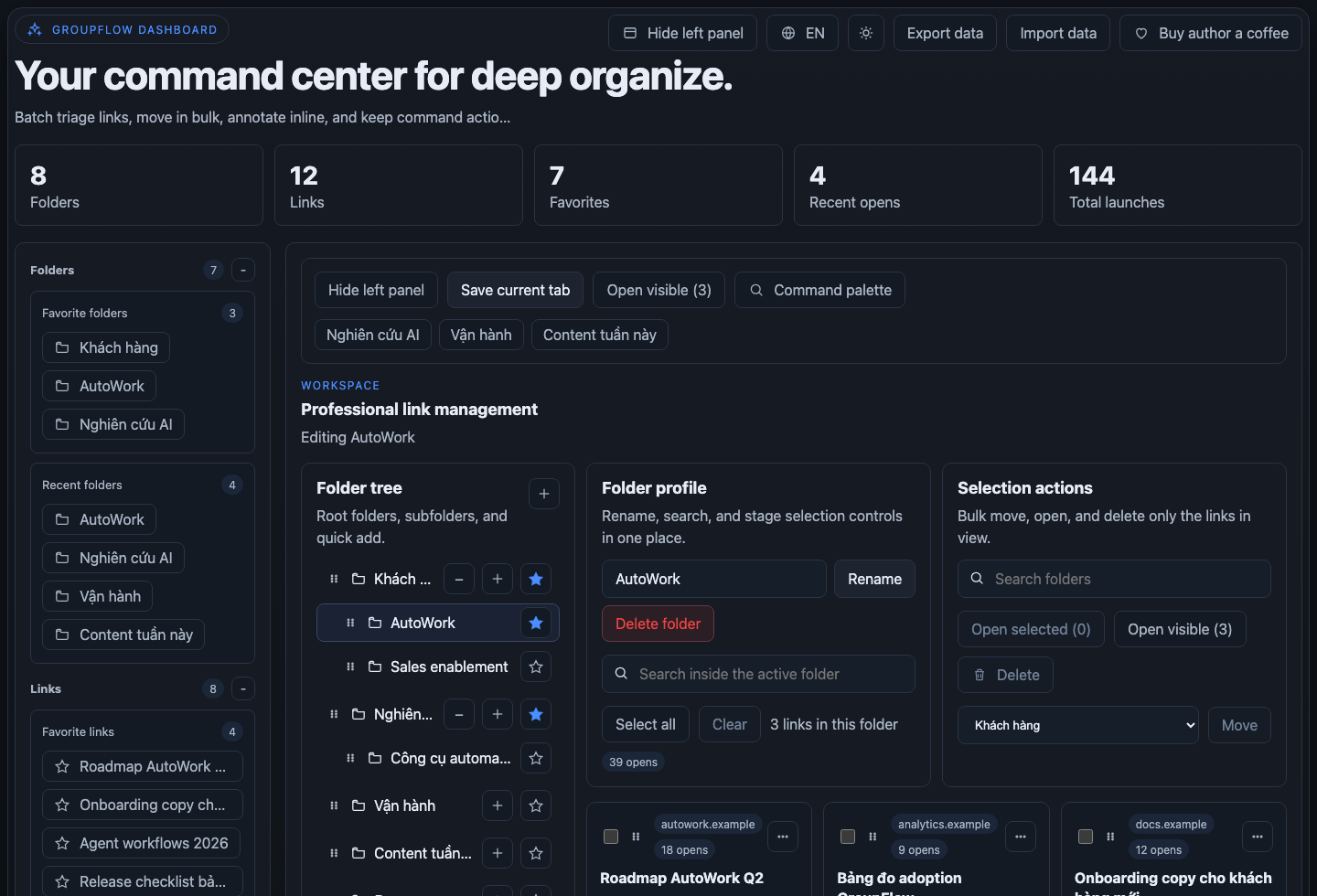
Use Dashboard when you need advanced cleanup and organization, with the new command center layout.
- Rename folders, create subfolders, and reorganize structure.
- Add notes to links for clearer categorization.
- Select multiple links to open/move/delete in bulk.
- Use Dashboard as the central control hub for your full link library.
5) Command Palette: find and jump context instantly
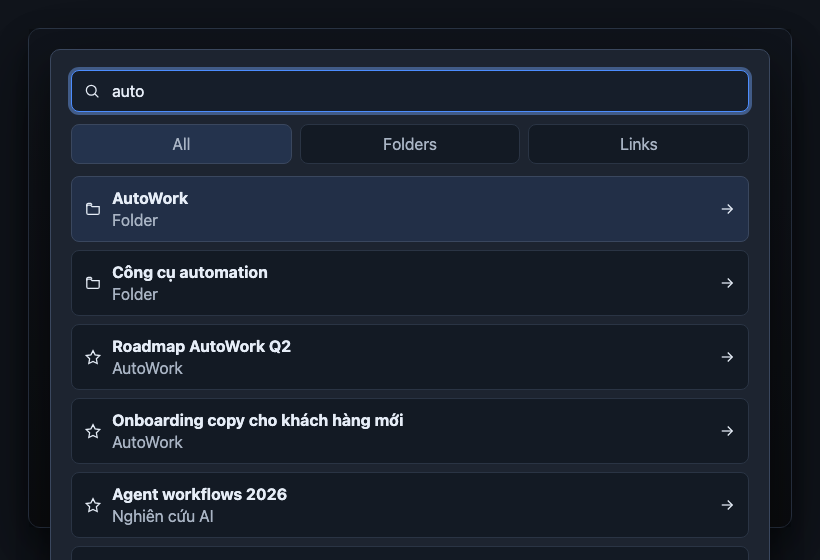
Useful when you have many folders/links and want fast keyboard-driven lookup.
- Open Command Palette to search folders and links quickly.
- Type folder names or link keywords.
- Pick a result to jump to the right working context immediately.
6) Bulk actions to save time
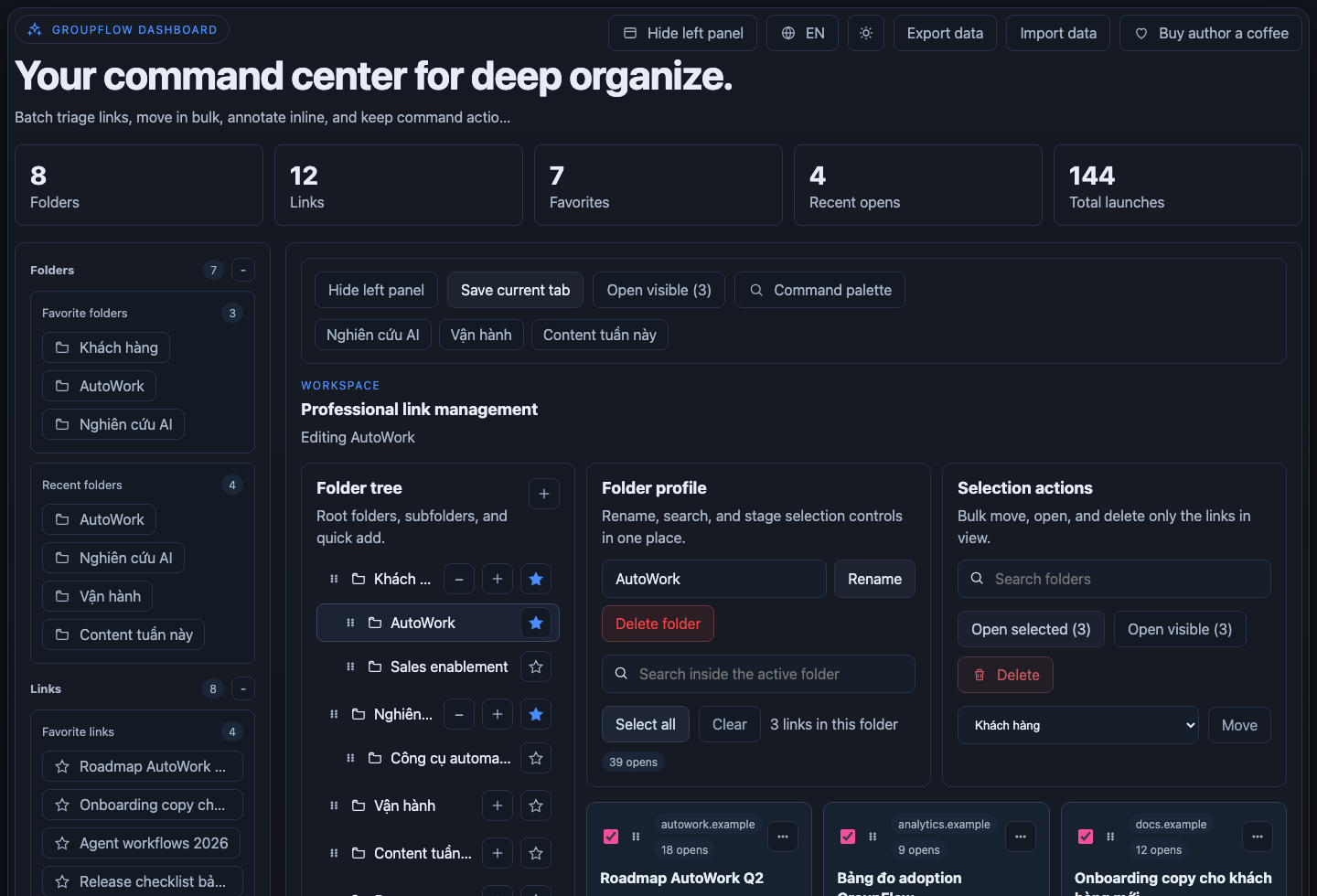
When handling many links at once, use batch actions.
- Click Select all or manually select target links.
- Use action buttons to open, move, or delete in one go.
- This keeps your library cleaner, more consistent, and faster to maintain.
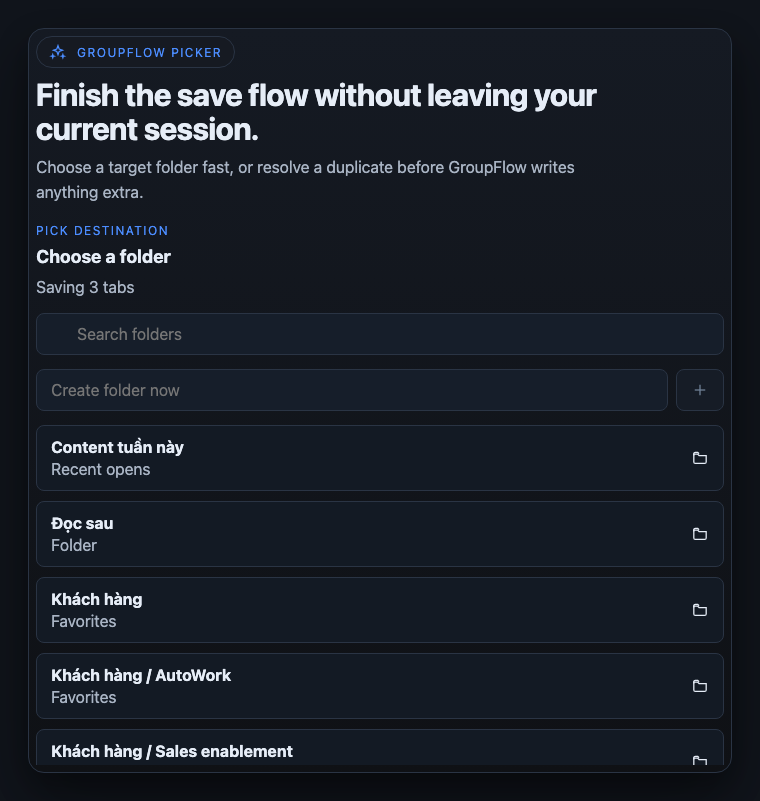
7) Picker: choose folder when saving from context menu
When saving multiple tabs via right-click menu, Picker appears so you can choose destination.
- Select the destination folder from the list.
- If needed, create a new folder directly there.
- Confirm to finish the save action.
8) Handle duplicate links
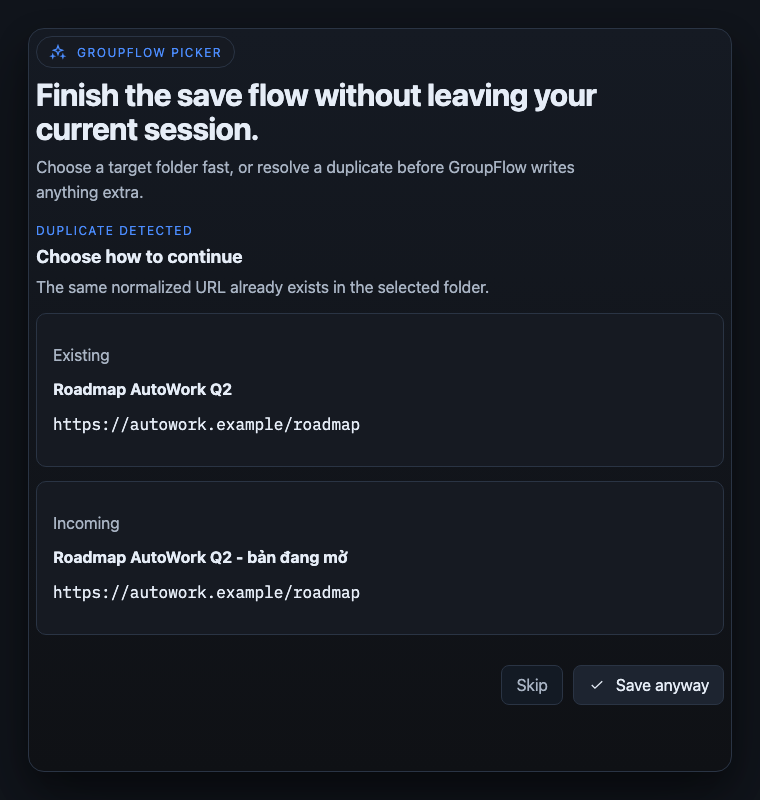
GroupFlow detects duplicate URLs in the same folder to keep data clean.
- Choose Skip if you do not want to save duplicates.
- Choose Save anyway if you intentionally want another copy of the same URL.
Helpful usage tips
- Name folders by project/topic for easier retrieval (for example: “Project A”, “Market research”).
- Add short notes to important links to remember purpose.
- Regularly open Dashboard to clean up old links and regroup folders.
- Use favorites for frequently accessed folders/links.
Frequently asked questions
- Can’t find a newly saved link? Check the active folder in popup, then search with keywords.
- Too many tabs when opening links? Filter and select the right link group before bulk open.
- Can I back up my data? Yes, use
Export datain Dashboard. - How to move to another machine? Export from the old machine, then
Import dataon the new one.